WIFI and IFTTT thermostat: how to set it

Probably if you have arrived on this page you already know IFTTT, but this may not be the case, so we will proceed with a brief presentation of the service and then we will immediately move on to the practical part!
What is IFTTT
IFTTT stands for If This Then That , i.e., if this happens then it does that. This is a service that allows you to program automatic actions based on events, making smart devices and smartphones communicate with each other in a few simple steps, integrating the functions made available by both.
Does it sound complicated? Trust me, it's not, let's immediately see in practice how this happens.
If the temperature exceeds x then…
Let's see together how to exploit the potential of IFTTT by equipping our Wi-Time chronothermostat with new features. In this tutorial we will set up an IFTTT applet that records the event to a Google Sheet if the temperature in your home increases above a certain threshold.
So let's proceed step by step.
How to build the IFTTT applet for your thermostat
The first step is to go to the IFTTT service which allows you to create an applet: https://ifttt.com/create
Of course, if you don't have an IFTTT account you will be asked to create one. Don't worry, it's completely free!
At this point click on the + to start the creation wizard (see image below)

1. Select a service
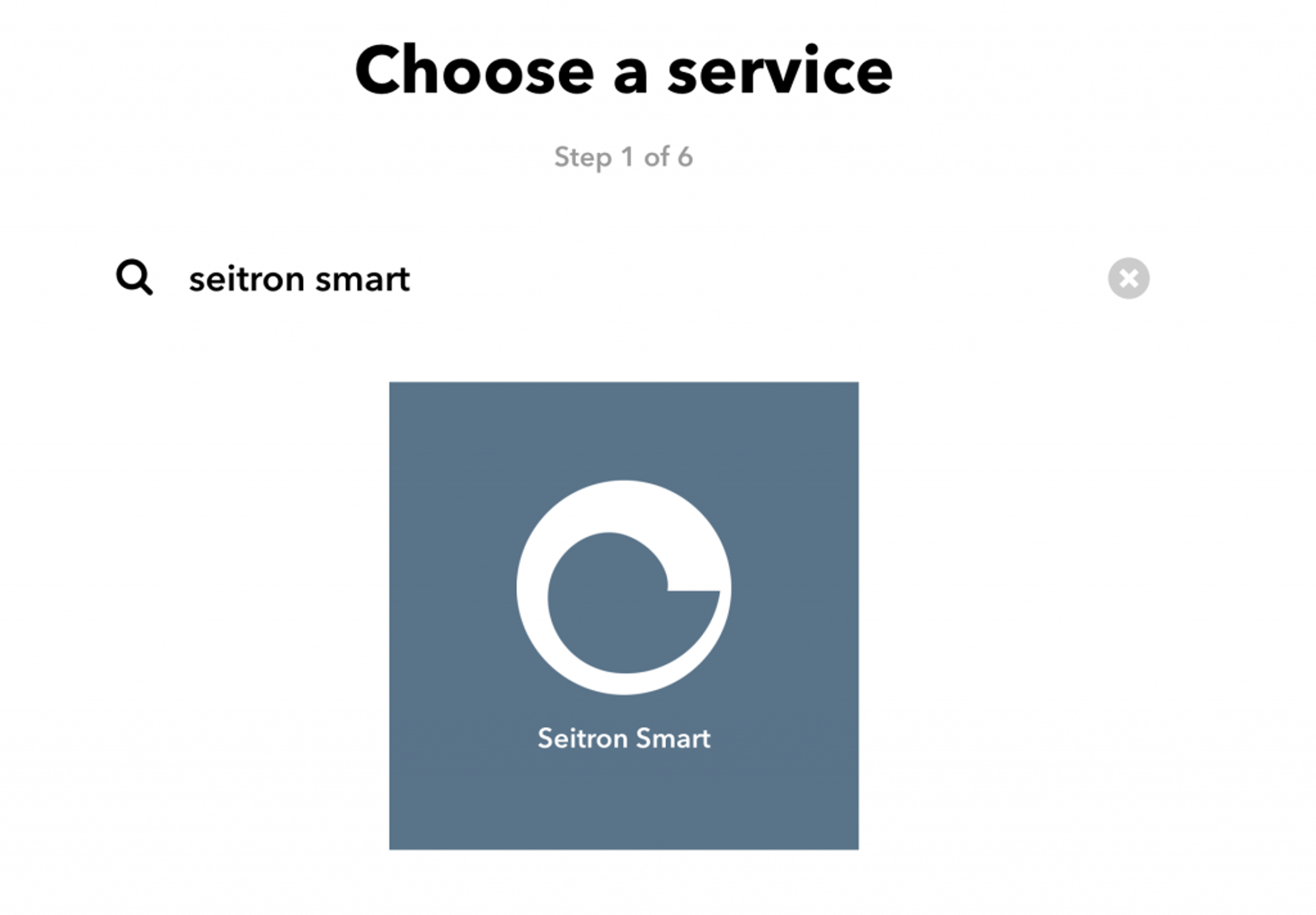
Search for “Seitron Smart”, click connect. You will be asked for the username and password you use in the Seitron app to manage Wi-Time
2. Choose a trigger
The trigger is the event that starts the action. Do you remember our purpose? Record the event on a Google Sheet when the temperature exceeds a certain threshold. The trigger to choose is therefore: “Temperature rises above”. At this point you will be asked to enter the temperature that triggers the event; the name of the Wi-Time; the unit of measurement.